
📘 BS1C - Bluetooth to Serial
Video Tutorial Bluetooth 2.0 to RS232 Serial 1 Channel
Bluetooth 2.0 to RS232 Serial 1 Channel
1. Introduction
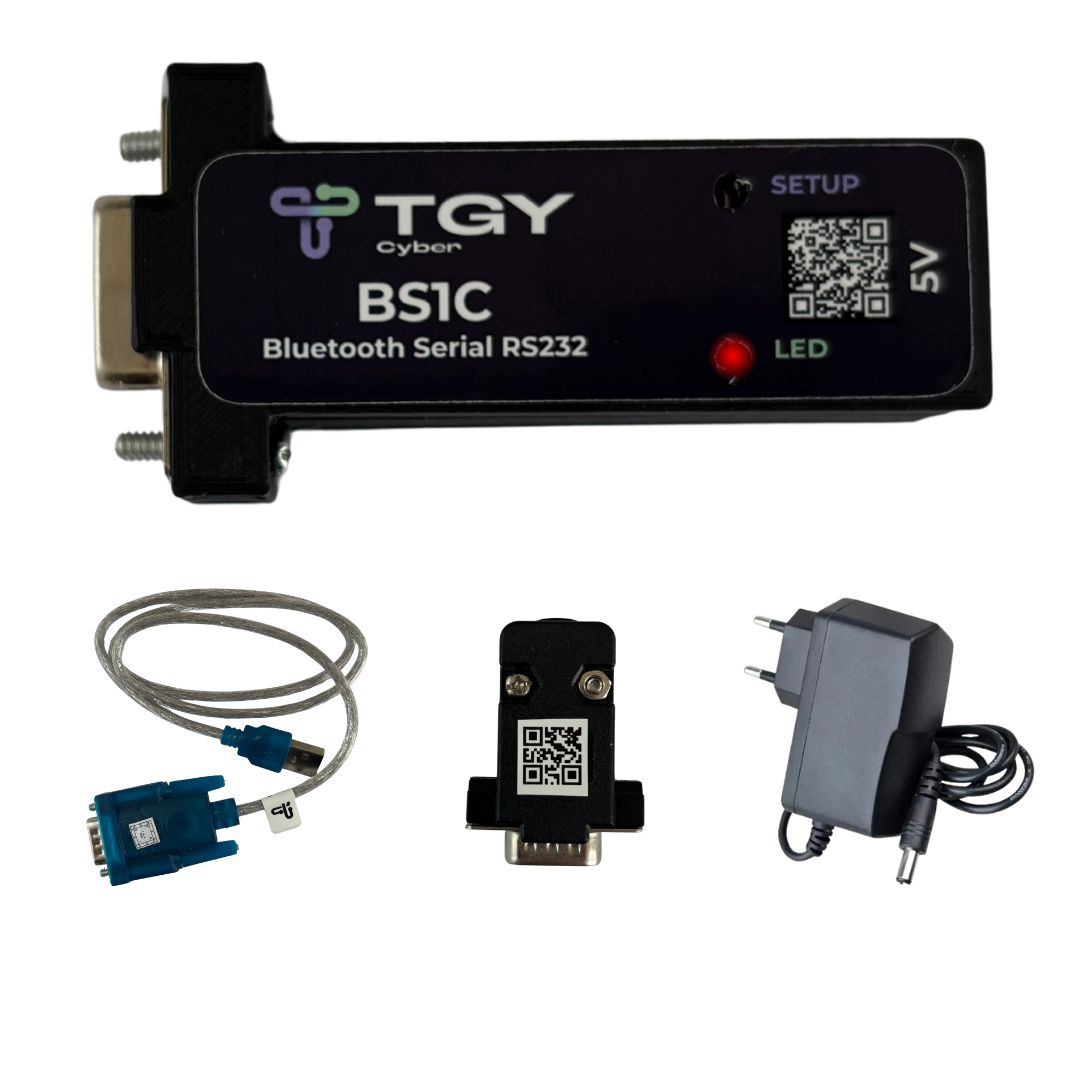
The BS1C is a bidirectional converter that enables wireless communication between devices with a serial RS232 interface and Bluetooth 2.0 equipment.
Ideal for replacing serial cables in commercial and industrial systems, providing greater convenience and mobility.
2. Technical specifications
| Parameter | Specification |
|---|---|
| Interface | Bluetooth 2.0 2.4GHz (HC-05 chipset) / RS232 Serial |
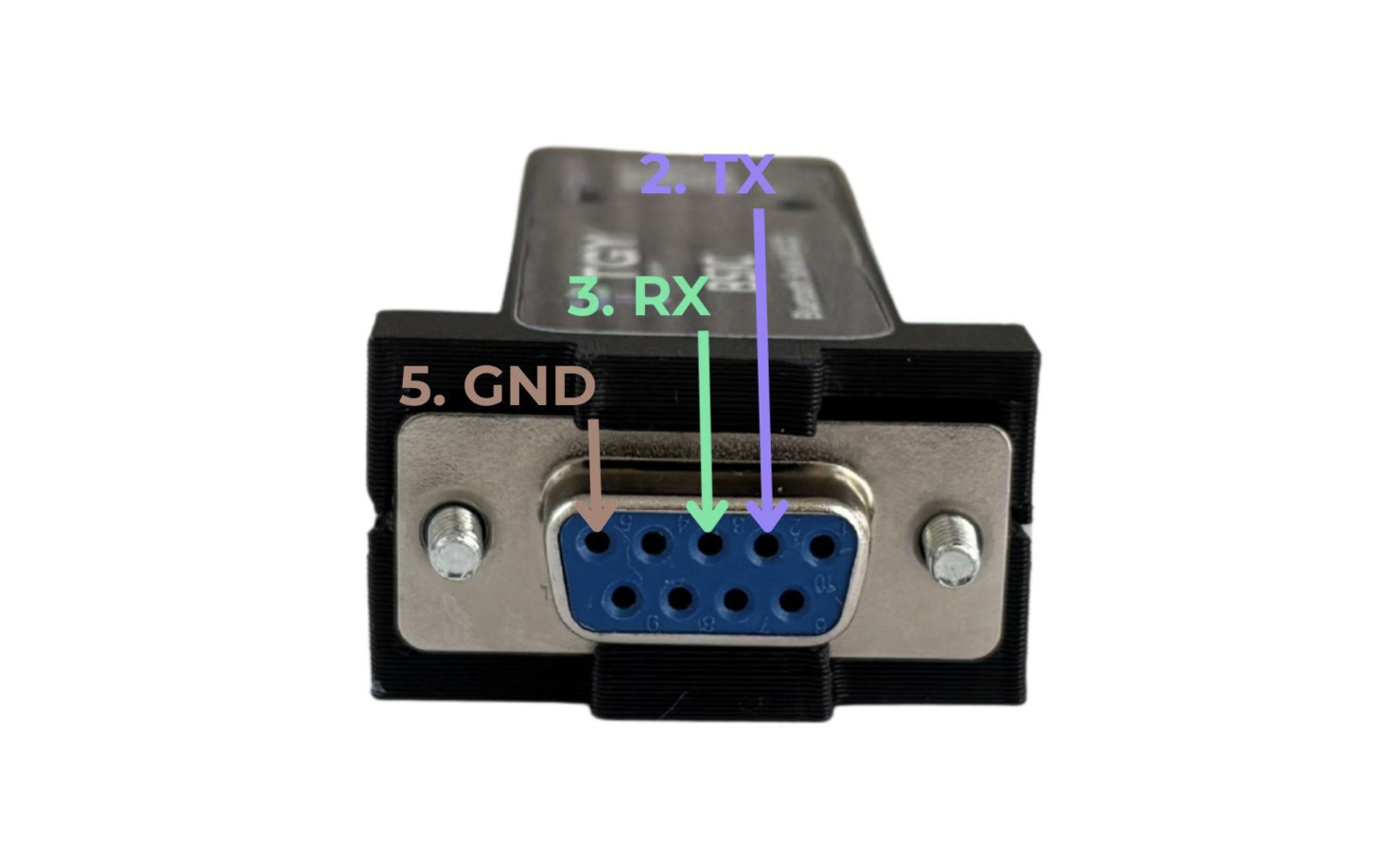
| Connector | DB9 Female (2-TX; 3-RX; 5-GND) |
| Input voltage | 5V |
| Maximum current | 2A |
2. Configuration
The BS1C ships with the following defaults:
| Parameter | Value |
|---|---|
| Bluetooth network name | BS1C |
| PIN | 1234 |
| Baud rate | 9600 (supported values: 1200, 2400, 4800, 9600, 19200, 38400, 57600, 115200) |
| Parity | 0 |
| Stop bit | 0 |
| Role | Master (1) |
2.1 Connecting to the configuration software
Download the TGY Cyber Suite at https://www.tgycyber.com/downloads.
Steps:
Install the application and open the "BS1C Config" tab in the side menu.
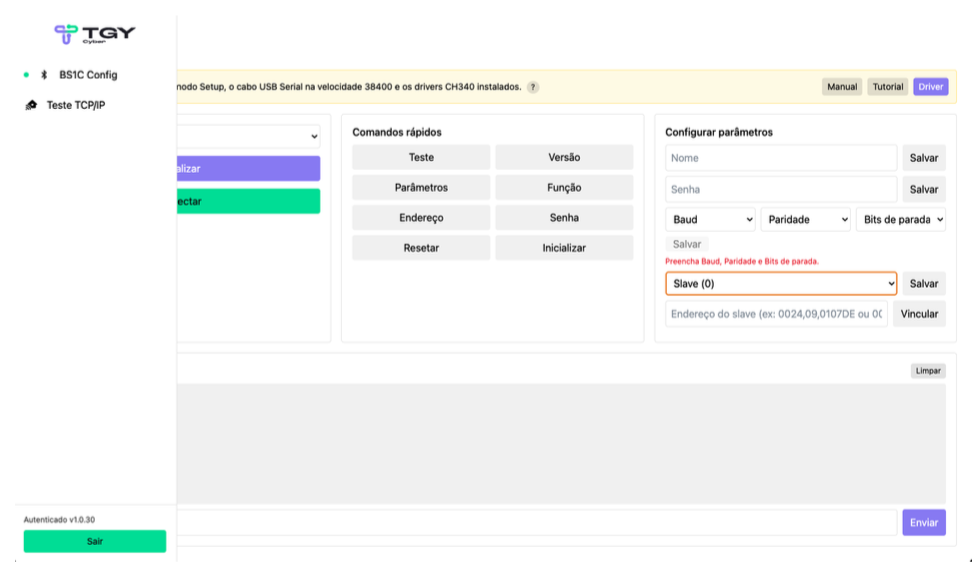
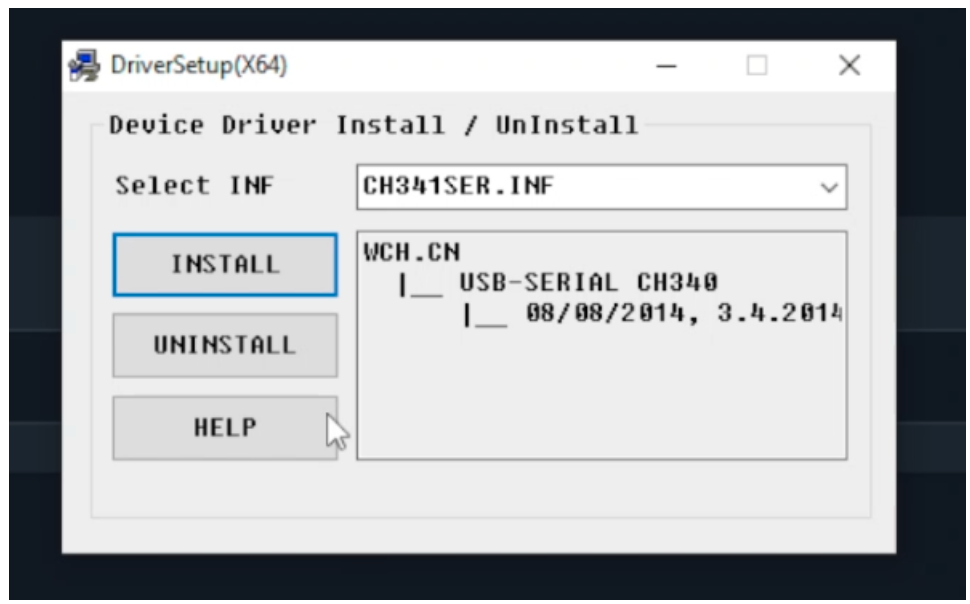
If the CH340 driver is not installed, click the "driver" button and follow the installation.

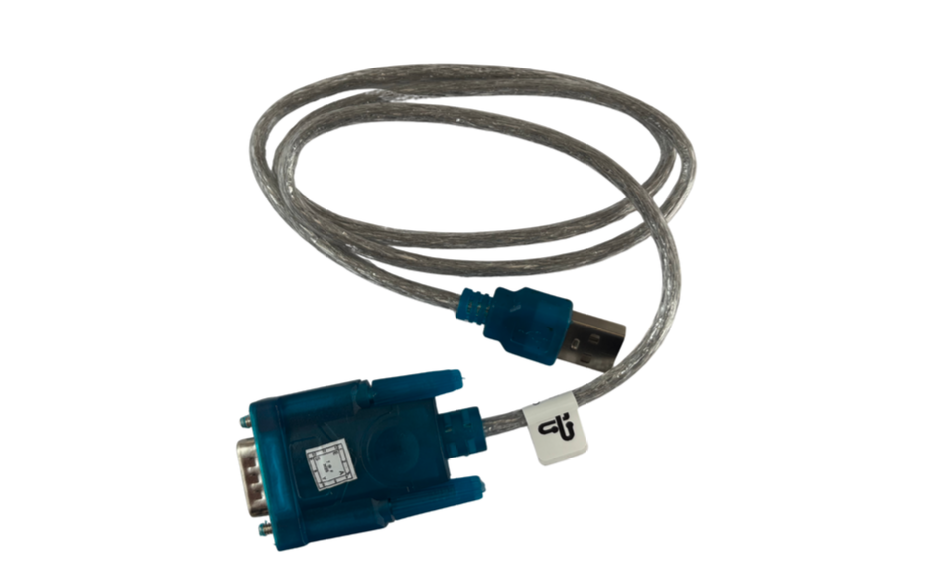
Connect the USB Serial Cable (included in the kit) to your computer.
- Set the COM port to Baud Rate 38400 through Windows Device Manager.

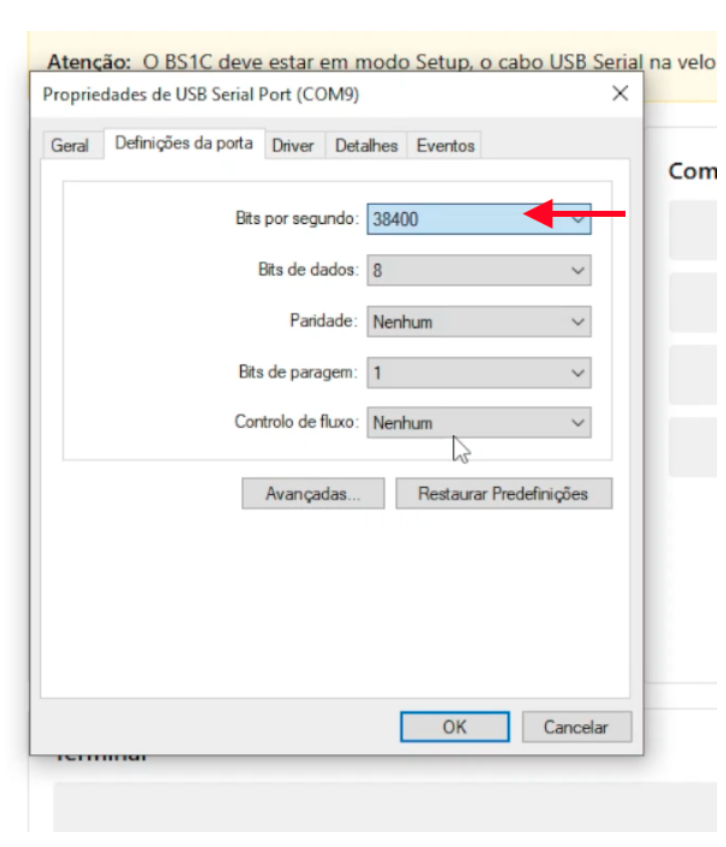
- Set the COM port to Baud Rate 38400 through Windows Device Manager.
Put the BS1C into SETUP mode:
⚠️ If the BS1C is not in setup mode, it will not communicate with the configuration software.
- Disconnect BS1C from power.
- Press and hold the SETUP button.
- Reconnect power while keeping the button pressed.
- Wait 3 seconds and release the button.
- The LED will blink slowly.
In TGY Cyber Suite, select the corresponding COM port and click "Connect".


To test communication, click the "Test" button.
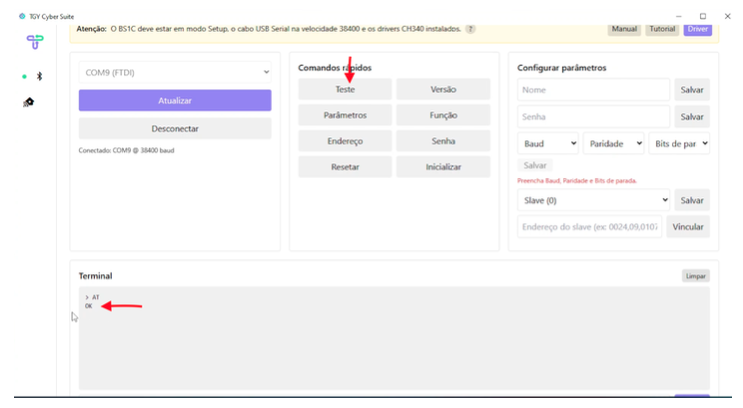
- The
ATcommand will be sent and, if everything is correct, it will return "OK".
- The
2.2 Applying the settings
In the Parameters tab, you can set:
| Field | Description |
|---|---|
| Name | Bluetooth name broadcast by the module |
| PIN | Pairing PIN (default: 1234) |
| Baud / Parity / Stop bits | Serial communication parameters – must match the connected serial device |
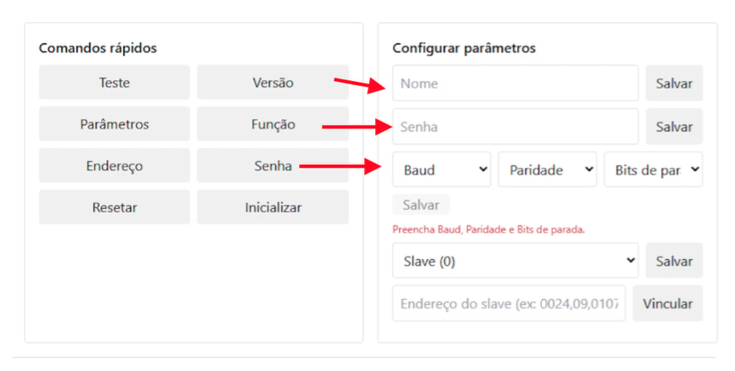
⚠️ Remember to click "Save" after configuring each item.
3. Validating Bluetooth connection
After configuring the device, you can validate the connection using an Android smartphone and the Test Loop Connector.
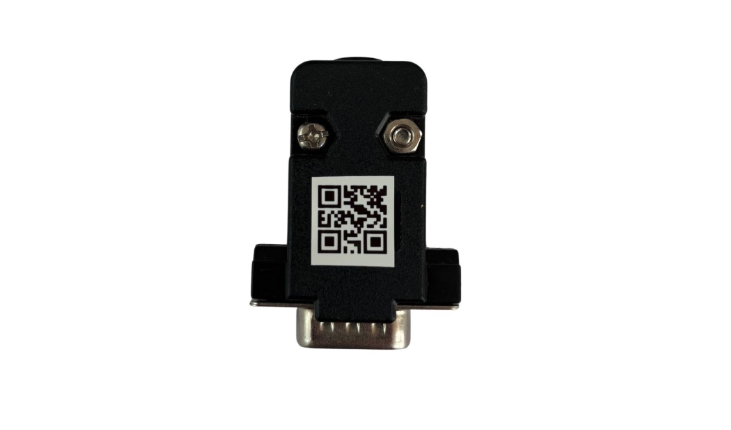
Steps:
- Connect the Loop Connector to the BS1C.
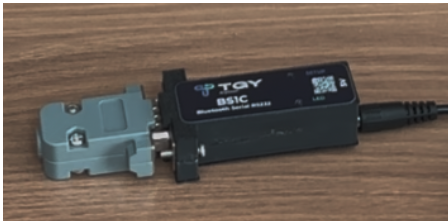
- Install the Serial Bluetooth Terminal app from Google Play.
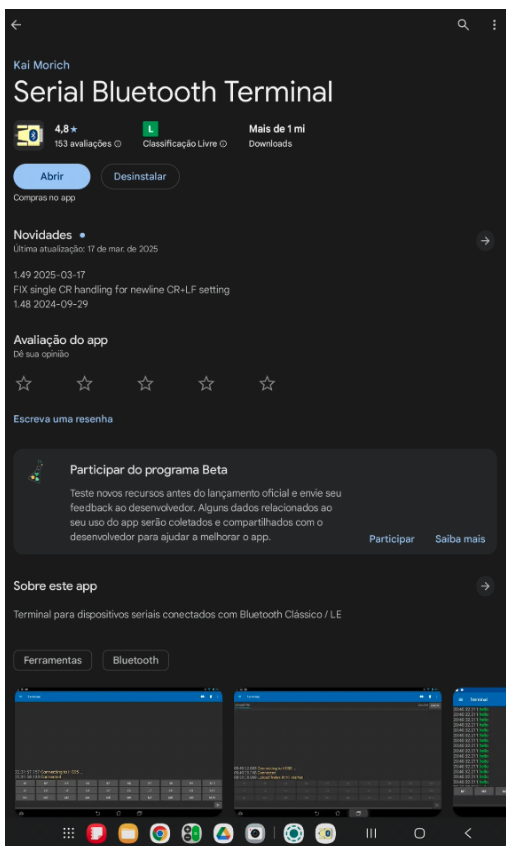
- On Android, go to Settings → Bluetooth and pair with BS1C.
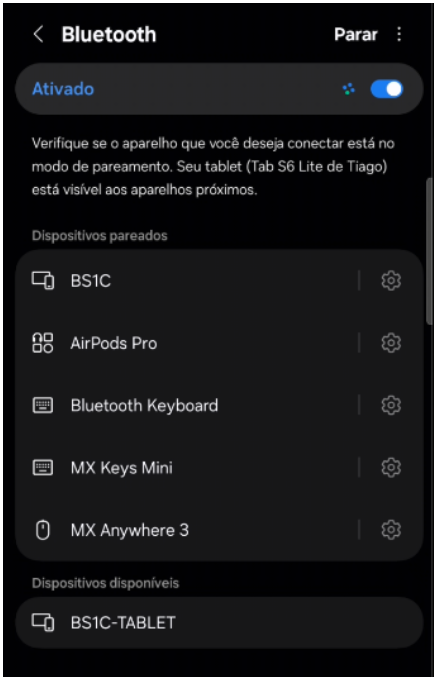
- Open the app and select BS1C in the Devices tab.
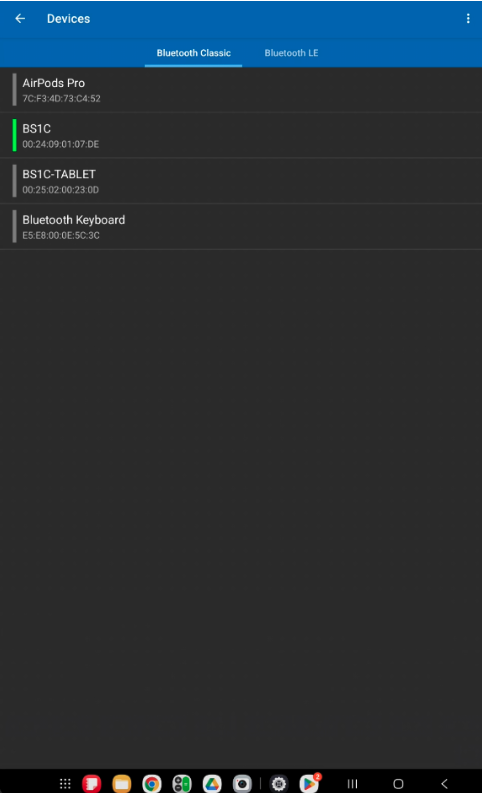
- Send messages.

- If you receive the same message back (in green), communication is working correctly.
4. Master - Slave configuration
The Master - Slave feature lets you connect two BS1C devices and replace a wired serial link.
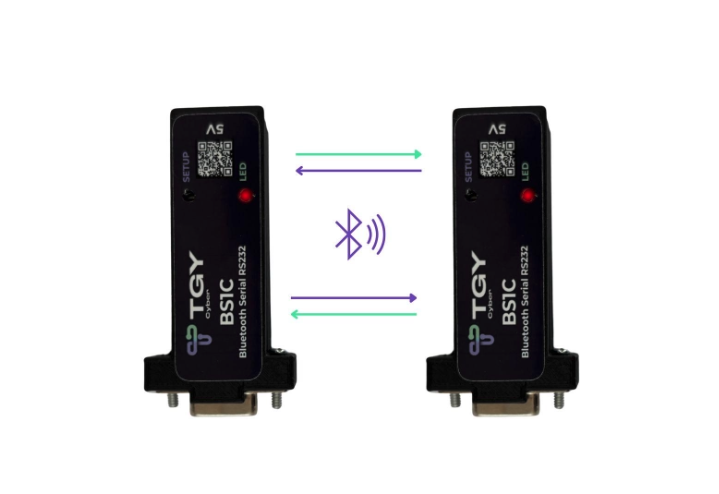
Steps:
- Connect the first BS1C to the software and set the mode to Slave (0).
- Click "Address" and note the value shown in the terminal (example:
0025:02:00230D = 0025,02,00230D).
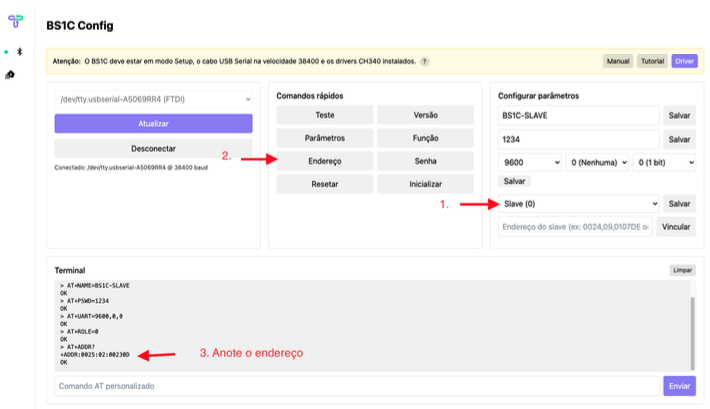
- Connect the second BS1C and set the mode to Master (1).
- Enter the Slave's address and click "Bind".
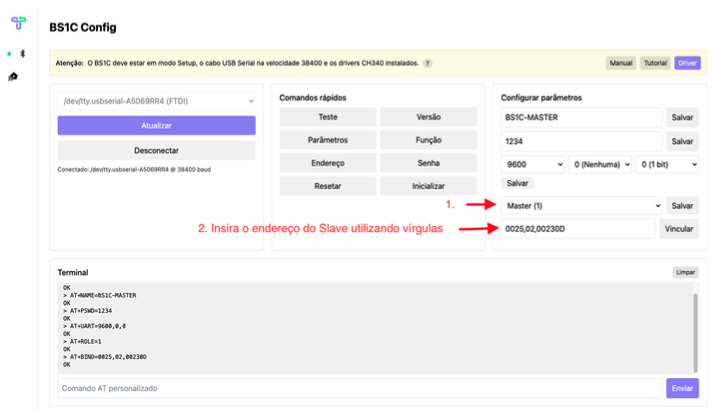
- Reconnect power to both devices — they will communicate automatically.
5. AT command list
The BS1C supports AT commands via the terminal in TGY Cyber Suite.
| Command | Function / Description |
|---|---|
AT |
Tests communication (response: OK) |
AT+VERSION? |
Returns firmware version |
AT+ADDR? |
Shows the Bluetooth address (MAC) |
AT+NAME? / AT+NAME=<name> |
Gets / Sets Bluetooth name |
AT+ROLE? / AT+ROLE=<x> |
Gets / Sets mode (0 = Slave, 1 = Master, 2 = Loopback) |
AT+UART? / AT+UART=<baud>,<stop>,<parity> |
Returns / Sets serial parameters |
AT+PSWD? / AT+PSWD=<pin> |
Gets / Sets pairing PIN |
AT+CMODE? / AT+CMODE=<x> |
Gets / Sets connection mode (0 = fixed, 1 = any) |
AT+BIND? / AT+BIND=<addr> |
Returns / Sets bound MAC address |
AT+INIT |
Initializes SPP module |
AT+INQ / AT+INQC |
Starts / Cancels device inquiry |
AT+INQM? / AT+INQM=<mode>,<max>,<time> |
Gets / Sets inquiry parameters |
AT+LINK=<addr> |
Connects to device at the specified address |
AT+DISC |
Disconnects active link |
AT+STATE? |
Shows current state (CONNECTED, PAIRABLE, etc.) |
AT+ORGL |
Restores factory settings |
AT+RESET |
Reboots the module |
AT+POLAR=<PIO8>,<PIO9> |
Configures status pins |
AT+PIO=<n>,<m> |
Sets logic level of a pin |
AT+MRAD? |
Returns MAC of last connected device |
AT+ADCN? |
Shows number of detected devices |
AT+RMAAD |
Removes all paired devices |
AT+FSAD=<addr> |
Stores fixed address |
AT+ENSNIFF=<addr> / AT+EXSNIFF=<addr> |
Enables / Disables sniff mode (power saving) |