
📘 ES2C - Ethernet & WiFi to RS232 Serial with 2 Channels
Video Tutorial
RS232 Serial to Ethernet & WiFi Converter with 2 Channels
1. Introduction
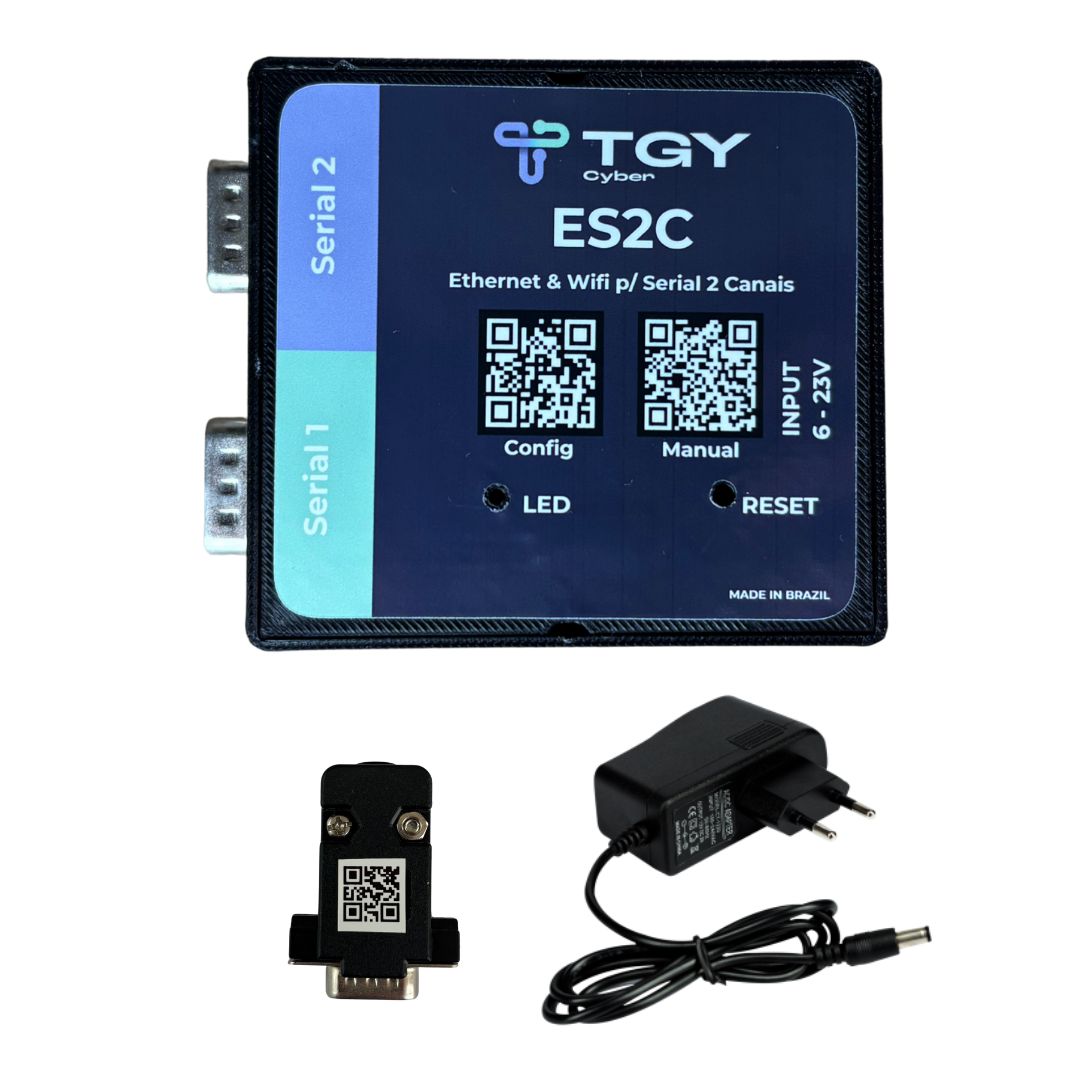
The ES2C is the most advanced serial converter from TGY Cyber, bringing significant improvements over the ES2C version. Among the main new features are: Ethernet connection, expanded voltage regulator range (6 to 23V), firmware optimized for maximum stability and reliability, plus high-quality components and finish. The device has two RS232 serial ports, allowing you to connect various devices (such as scales, printers, microterminals, among others) and enabling communication via Ethernet or Wi-Fi through TCP/IP, HTTP via API and MQTT protocols.
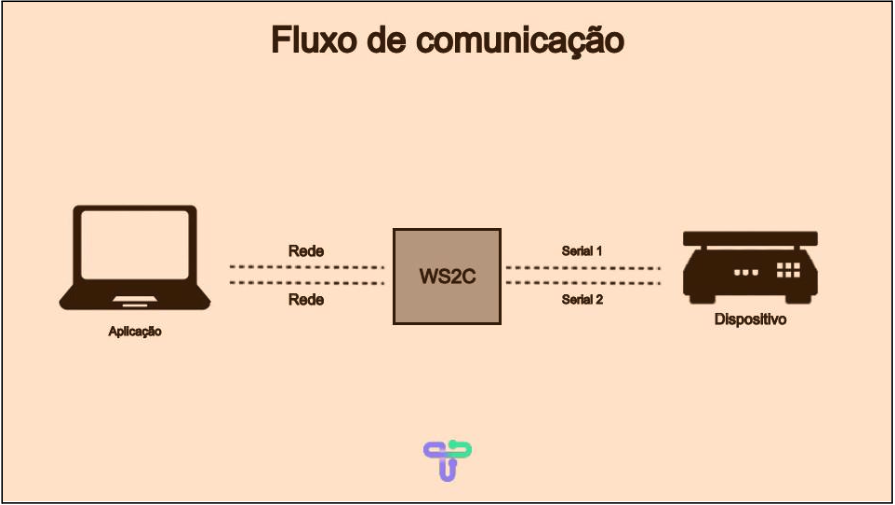
Data received from the network is transmitted to the serial port, and data sent by serial is transmitted over the network.
1.1 Installation
Connect the ES2C to a power supply with output between 6V and 23V.
The power supply included with the ES2C Kit operates at 127V or 220V, and the device will be ready for configuration and use.
2. Webserver
The ES2C is configured through an internal webserver.
To access it, simply connect to the network created by the device and open your browser.
2.1 Connecting to the ES2C network
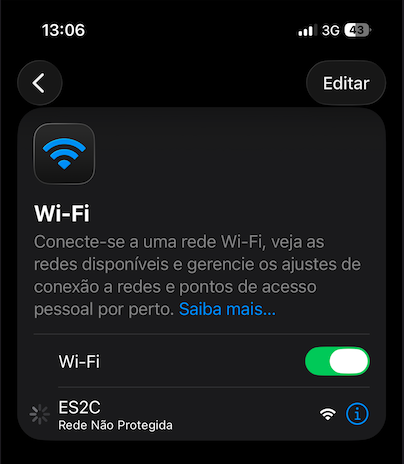
- On your computer or phone, open Wi-Fi settings.
- Find the network named "ES2C" (no default password).
- Connect, the webserver will already be available for access.
2.2 Accessing the webserver
Open your browser and type the address:
http://10.10.10.10
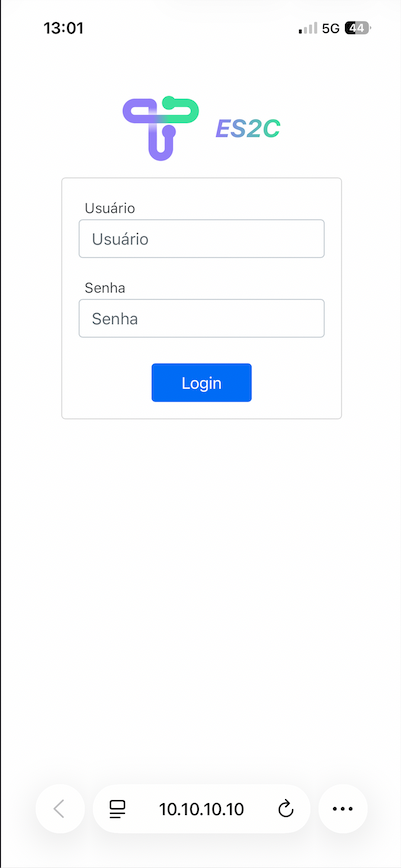
⚠️ Make sure to use "http://" and not "https://", as the server does not support HTTPS.
2.3 Logging into the webserver
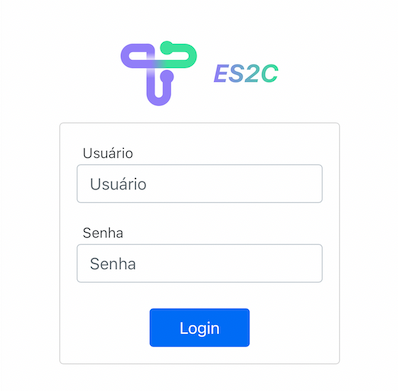
The login screen will display the following fields:
| Field | Default value |
|---|---|
| Username | admin |
| Password | admin |
3. Configuring the device
The webserver has five sections:
- System configuration
- Serial port configuration
- General configuration
- Status view
- Protocol configuration
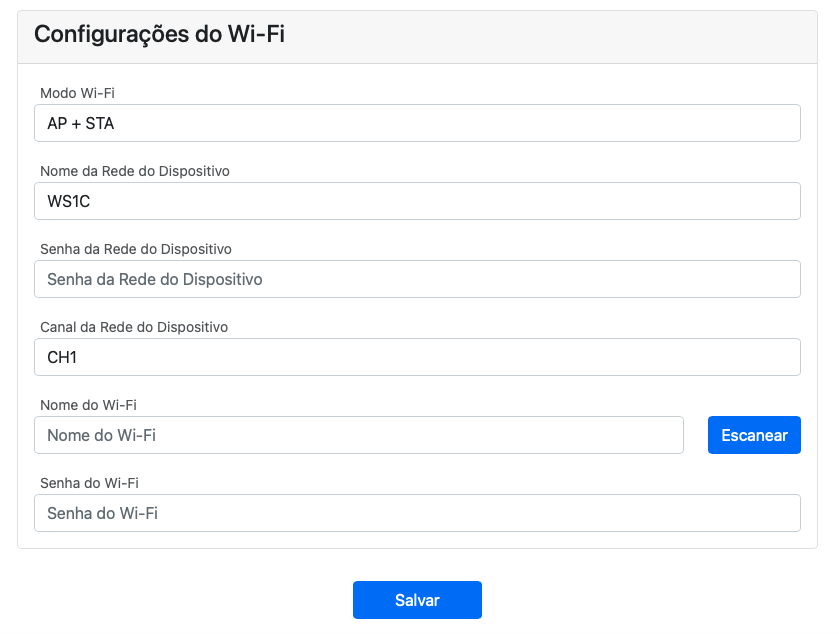
3.1 System configuration
In this section you can adjust:
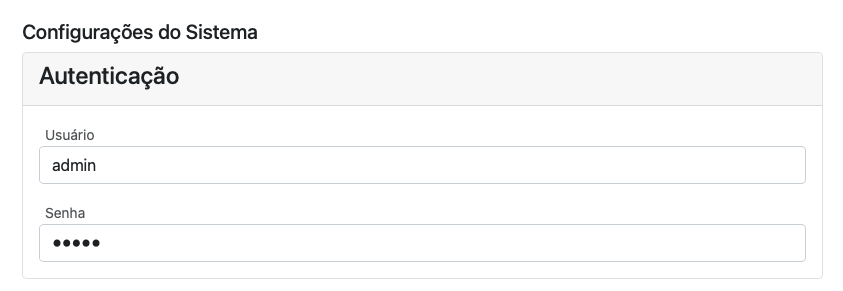
- Authentication data (webserver username and password)
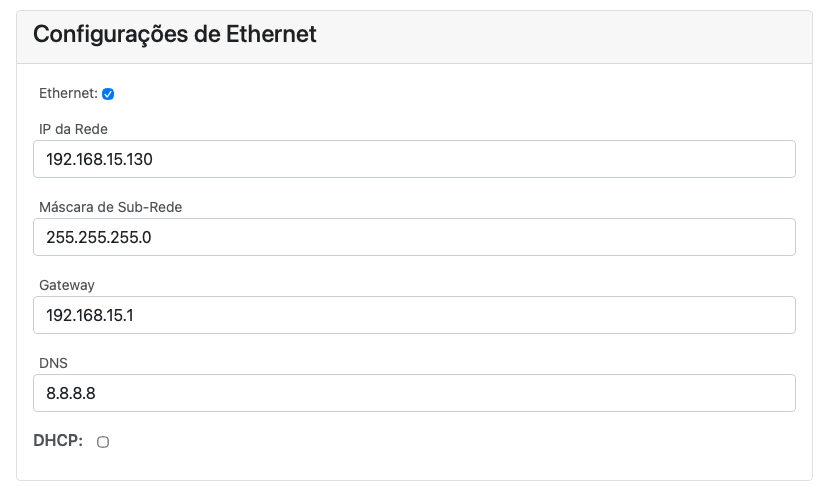
- Ethernet network settings (DHCP or manual)
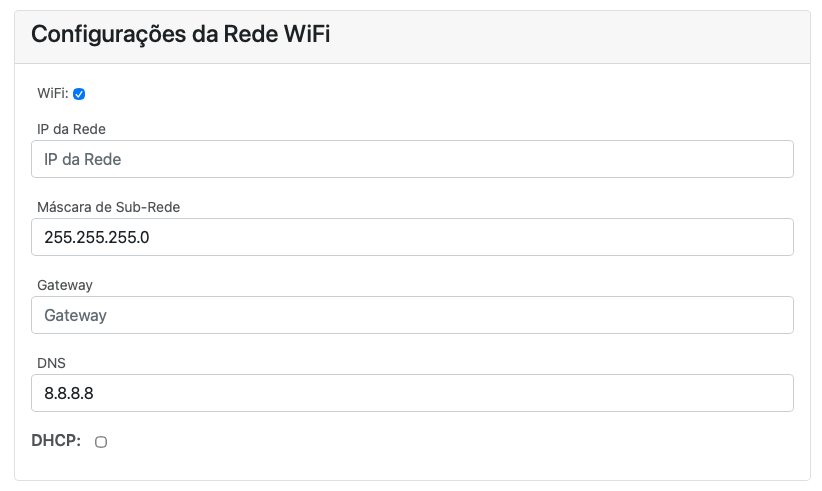
- Wi-Fi network and operation settings
LAN Configuration
| Field | Description |
|---|---|
| Network IP | Fixed IP address (if manual mode) |
| Subnet mask | Default: 255.255.255.0 |
| Gateway | Router address |
| DNS | Default: 8.8.8.8 (Google) |
| DHCP | Can be enabled or disabled |
⚠️ Disabled DHCP mode is recommended to avoid IP changes and loss of communication.
Wi-Fi Configuration
| Field | Description |
|---|---|
| Wi-Fi Mode | AP + STA, AP, or STA |
| Network name | SSID displayed in Wi-Fi search |
| Password | Wi-Fi connection password |
| Channel | Default "1" or values between 1-13 |
📶 AP (Access Point): Creates the ES2C network for configuration.
📡 STA (Station): Connects the ES2C to the local Wi-Fi network.
🔁 AP + STA: Allows simultaneous configuration and operation (recommended).
| Channel | Frequency |
|---|---|
| 1 (Default) | 2.412 GHz |
| 2 | 2.417 GHz |
| 3 | 2.422 GHz |
| 4 | 2.427 GHz |
| 5 | 2.432 GHz |
| 6 | 2.437 GHz |
| 7 | 2.442 GHz |
| 8 | 2.447 GHz |
| 9 | 2.452 GHz |
| 10 | 2.457 GHz |
| 11 | 2.462 GHz |
| 12 | 2.467 GHz |
| 13 | 2.472 GHz |
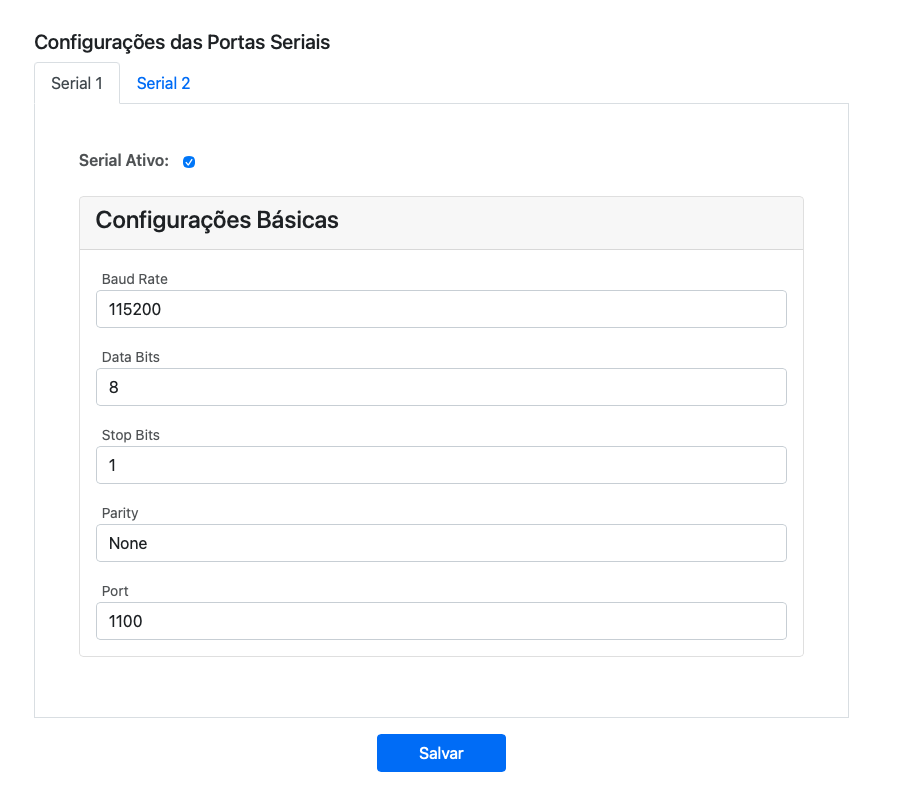
3.2 Serial port configuration
The ES2C has two independent serial ports, configurable individually.
| Parameter | Description |
|---|---|
| Baud Rate | Communication speed. Supported values: 1200, 2400, 4800, 9600, 19200, 38400, 57600, 115200, 250000, 921600 |
| Data Bits | Data bits |
| Stop Bits | Stop bits |
| Parity | Parity type |
| Port | TCP/IP port associated with serial |
By default:
- Serial 1 → Port 1100
- Serial 2 → Port 1101
⚠️ Ports cannot be the same.
Each serial port can be enabled or disabled as needed.
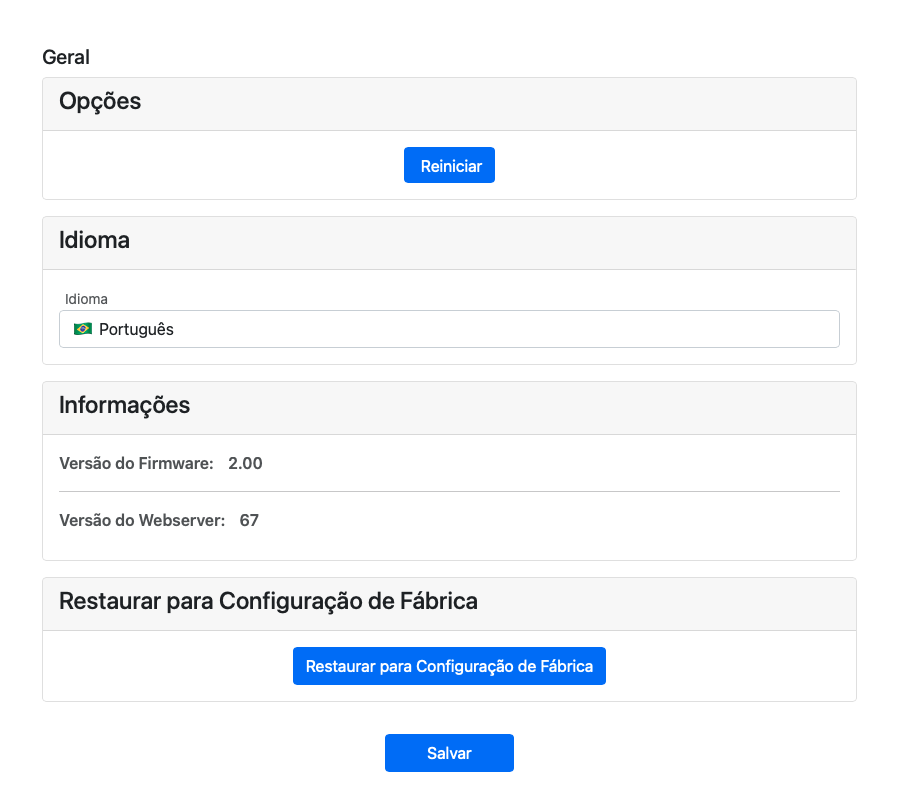
3.3 General configuration
This tab contains the basic system options:
| Option | Function |
|---|---|
| Restart | Restarts the converter |
| Language | Portuguese / English |
| Factory Reset | Returns to original settings |
⚠️ Resetting the system erases all user configurations.
3.4 Saving data
After configuring each section, click "Save".
A success message will be displayed at the top of the page.
Restart the ES2C to apply the changes.
⚠️ To restart the converter, quickly press the physical reset button once.
Attention: Do not hold the button for more than 10 seconds, as this will cause the converter to return to factory settings.
3.5 System Status
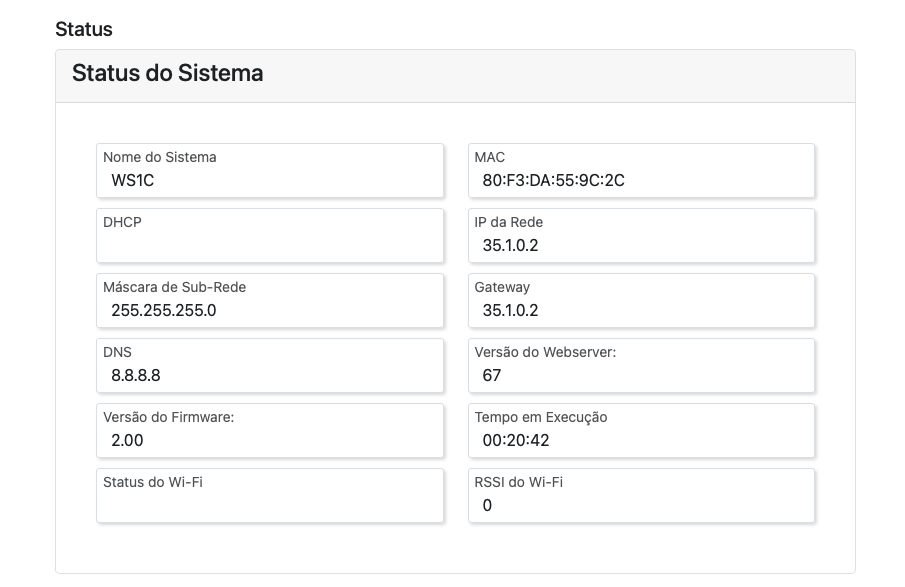
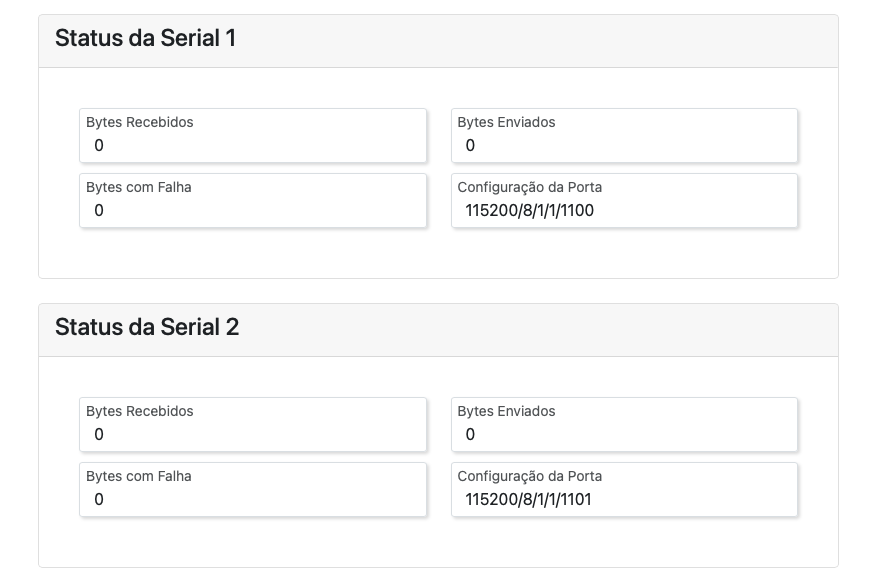
Displays information such as:
| Parameter | Example |
|---|---|
| System Name | ES2C TGY |
| MAC | 70:B8:F6:5C:BE:BC |
| IP | 192.168.15.11 |
| Mask | 255.255.255.0 |
| Firmware Version | 1 |
| Webserver Version | 1 |
RSSI (Wi-Fi signal strength)
| Value (dBm) | Quality |
|---|---|
| 0 to -50 | Excellent |
| -51 to -60 | Good |
| -61 to -70 | Acceptable |
| -71 to -80 | Weak |
| -81 to -100 | Poor |
Also displayed is the total bytes sent and received by each serial port via the TCP/IP protocol.
3.6 Protocols
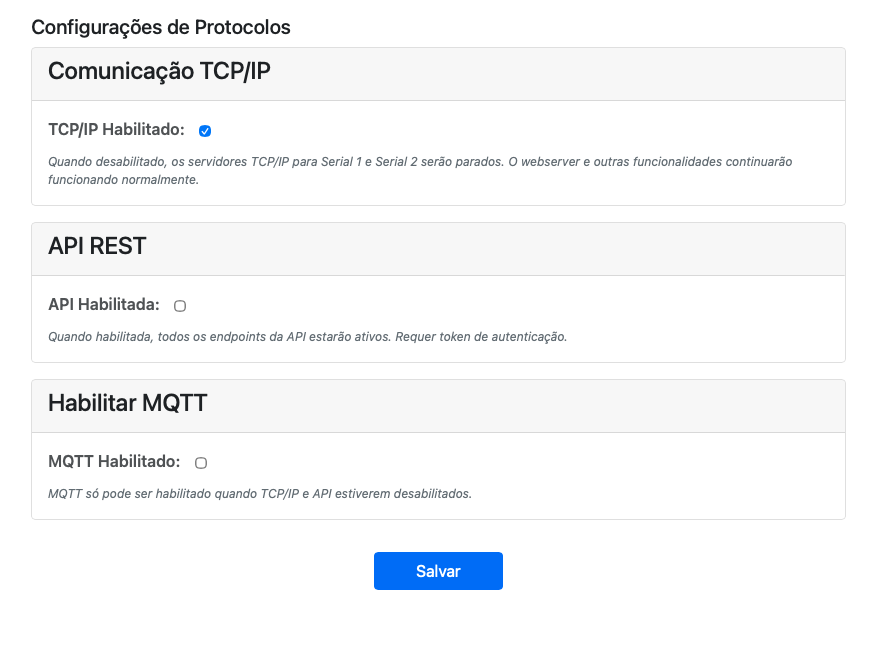
In this tab, you can enable or disable the communication protocols supported by the ES2C: TCP/IP, API (HTTP) and MQTT.
To ensure greater system stability, it is recommended to enable only the protocols that are actually needed. By default, only the TCP/IP protocol is enabled. The MQTT protocol can only be enabled if both TCP/IP and API protocols are disabled.
4. Physical interface of the device
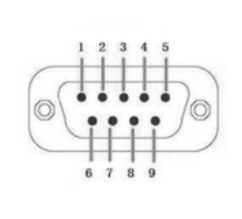
The ES2C has:
2 RS232 serial ports (male DB9) — pins 2 (RXD), 3 (TXD) and 5 (GND)
1 reset button
1 indicator LED
4.1 Button
| Action | Function |
|---|---|
| Quick press | Restarts the system |
| Hold pressed (10s) | Restores factory settings |
4.2 Indicator LED
| LED State | Meaning |
|---|---|
| Fast blinking (200ms) | Error — requires restart |
| Slow blinking (1s) | Normal operation |
| Irregular blinking | System updating |
| Fixed on | Initializing |
| Off | Powered off |
5. Testing Software
The TGY Cyber Suite is recommended software for testing and validating ES2C serial communication.
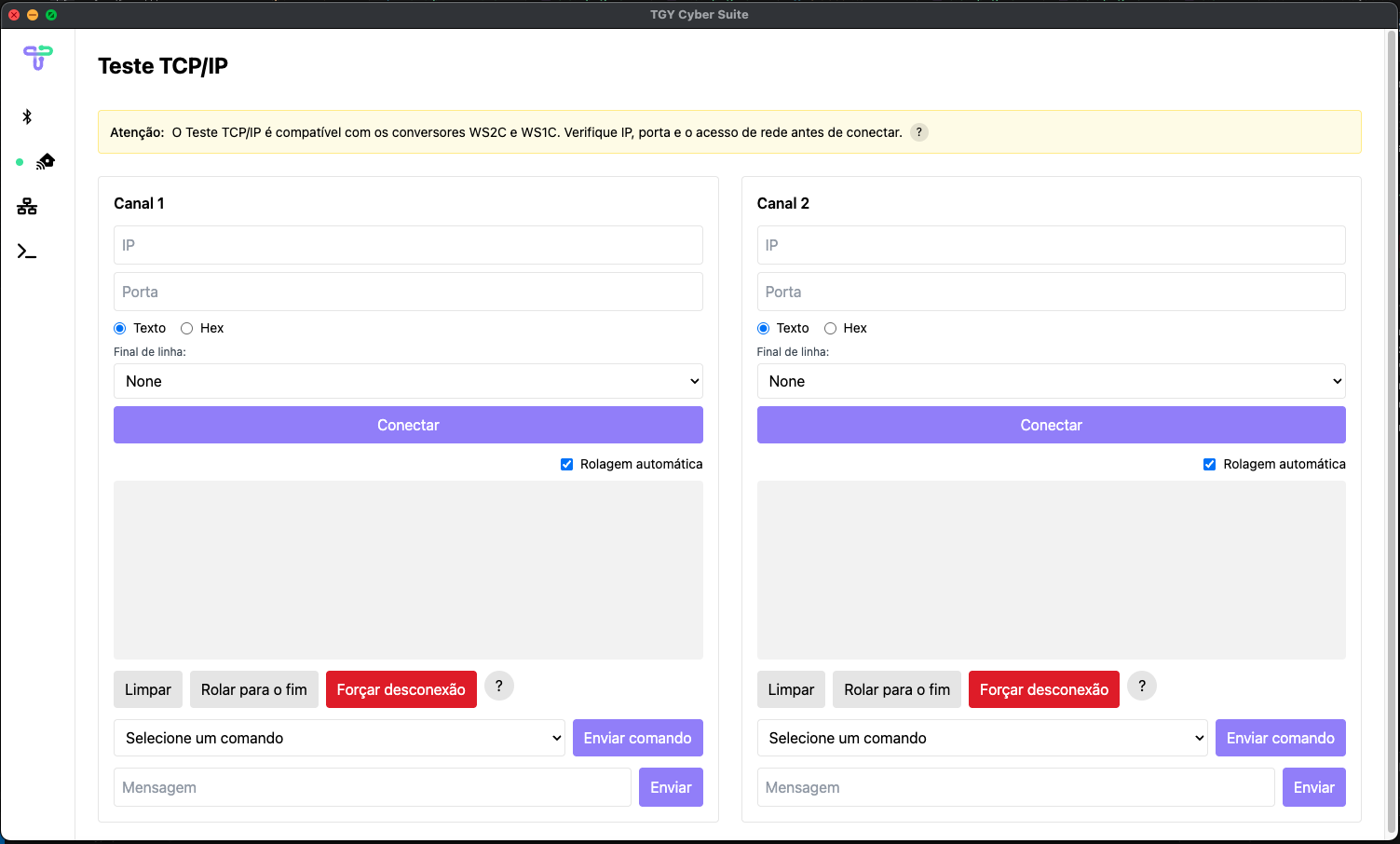
After downloading the software, you can see how to test the communication by watching the video below:
⚠️ The video demonstrates using the WS1C converter, but the same procedure is valid for the ES1C.
Steps:
- In the TGY Cyber Suite software, access the TCP/IP Test tab
- Connect the loop connector to the ES2C as shown in the video.
- Enter the IP and serial port.
- Click Connect.
- Type a message and send.
- If there is loopback between pins 2 (RX) and 3 (TX), the text will return in the reception field.
6. API - Application Programming Interface
The ES2C provides a REST API that facilitates integration with various external systems and applications.
Activation or deactivation of the API can be performed in the protocols menu, as explained in section 3.6 of this manual.
Watch the video below to see how to use the API in practice:
⚠️ All requests require an authentication token (minimum 6 digits).
6.1 Endpoint: /post-serial-data
Returns data received by the serial port in JSON format.
Example request:
URL:
POST http://192.168.15.130/post-serial-data
Header:
Authorization: 123456
JSON Body:
{
  "port": 1100,
  "time": 2500,
  "command": ""
}
port: port to listen totime: listening time (ms)command: optional command to send before listening
cURL:
curl -X POST http://192.168.15.130/post-serial-data \
  -H "Accept: application/json, text/plain, */*" \
  -H "Content-Type: application/json" \
  -H "Authorization: 123456" \
  -d '{"port":1100,"time":500,"command":"\u0005"}'
You can validate the API functionality with the TGY Cyber Suite software
⚠️ Listening time below 30 seconds is recommended to avoid blocking other functions.
7. MQTT - Message Queuing Telemetry Transport
The ES2C offers MQTT protocol support, providing an efficient solution for cloud application integration and IoT automation. Configuration to enable or disable MQTT can be easily performed through the protocols menu, as detailed in section 3.6 of this manual. Check out the video below for a practical demonstration of how to use MQTT with your ES2C: