
📘 ES-TGY - Serial to TCP/IP Emulator
Video Tutorial
1. Introduction
The ES-TGY converts a serial port into Ethernet (TCP/IP) by software while keeping your existing serial application unchanged. This serial→TCP/IP bridge lets you connect scales, printers, PLCs, CNCs, and similar serial devices over cable or Wi-Fi without rewriting the client software.
1.1 Scope
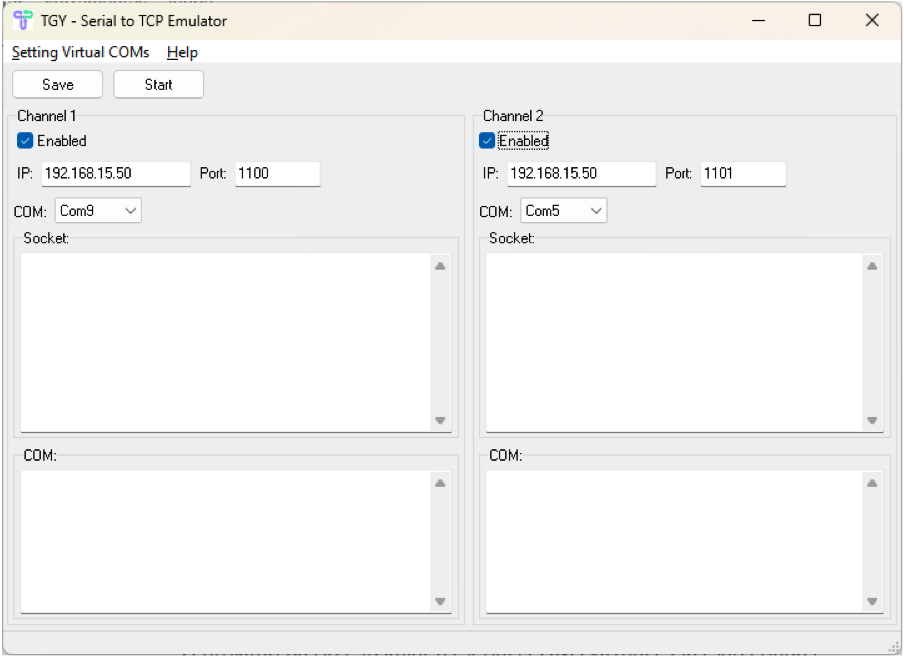
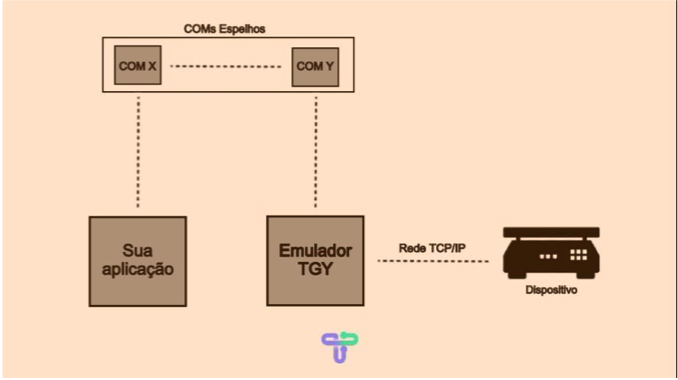
The emulator supports two independent channels, each with its mirrored COM pair and the target IP/port. Logs display the incoming and outgoing traffic for each channel.
2. Installation
- Download the installer here.
- Run
tgy_emulator_install.exeand follow the setup wizard until it completes. - Launch the emulator from
c:\tgy\emulator\sertcp.exeor the Windows Start menu.
3. Virtual COM configuration
3.1 Virtualizer installation
- From the main menu click Setting Virtual COMs.
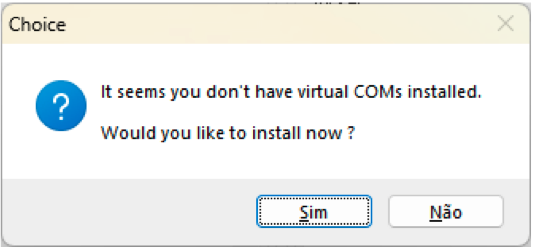
- If the virtualizer is missing, confirm the installation.
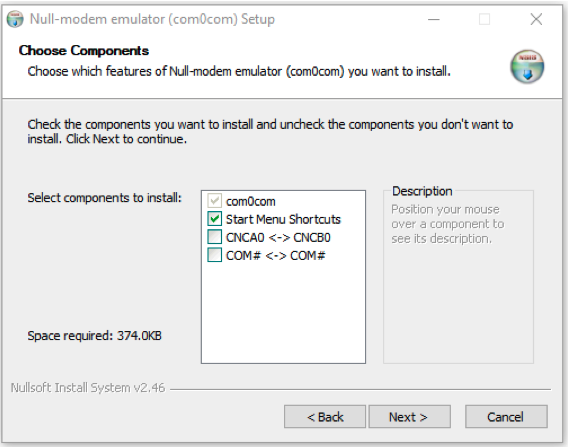
- Select the displayed components and continue the installer until you reach the component overview.
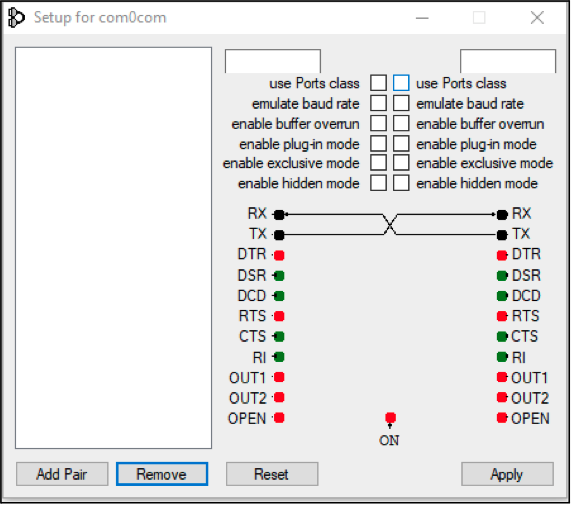
- Once installation finishes, return to Setting Virtual COMs.
3.2 Pairing COM ports
- Click Add Pair to create a mirrored pair.
- Enable Use Port Class and Enable buffer overrun on both sides (first and third rows).
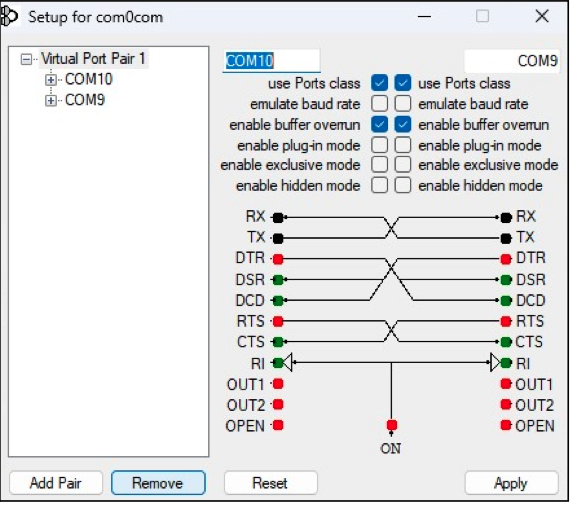
- The installer suggests COM numbers, but you can adjust them; default values are recommended.
- Click Apply and then Reset to confirm the pair.
Each pair works like a fork: the emulator uses one COM while your application uses the other. Data sent on one side instantly appears on the counterpart.
4. Emulator configuration
4.1 Enabling channels
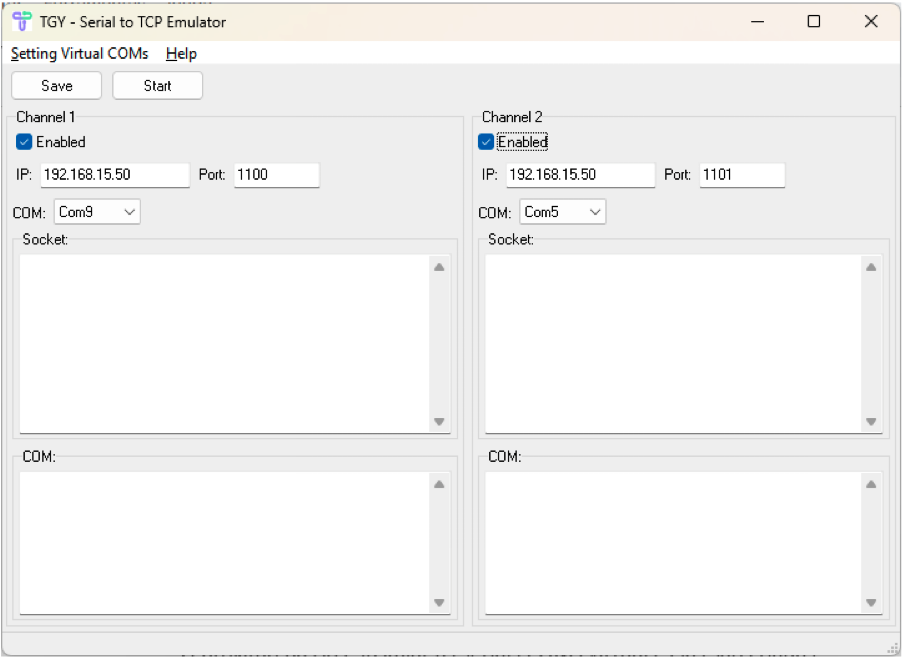
- Activate the desired channels by checking Enabled (up to two).
- The interface prevents selecting the same COM for both channels, so use distinct COMs.
- If both channels are used, create two separate COM pairs.
4.2 IP and port assignment
Configure each channel as follows:
| Field | Description |
|---|---|
| IP | Remote device IPv4 address |
| Port | TCP/IP port (0–65535; defaults: 1100 and 1101) |
| COM | Choose one of the ports from the configured pair |
If the same IP is shared across both channels, use different ports (e.g., 1100 and 1101).
4.3 Saving the setup
- Click Save to persist the IP, port, and COM settings.
- The emulator restores these values every time it starts.
5. Operation and monitoring
- Press Start to activate the serial → TCP/IP conversion.
- Errors about busy COMs or unreachable targets appear in the Socket and COM boxes; adjust settings accordingly.
- Success messages appear in the same boxes when the tunnel is established.
- Even minimized or closed, the emulator keeps running and stays accessible via the Windows tray icon.
- Press Stop to halt the conversion.
While running, you can observe the COM and Socket logs to debug the data flow.